June 12, 2026
How to Compress Images Without Losing Quality (Complete Beginner's Guide)
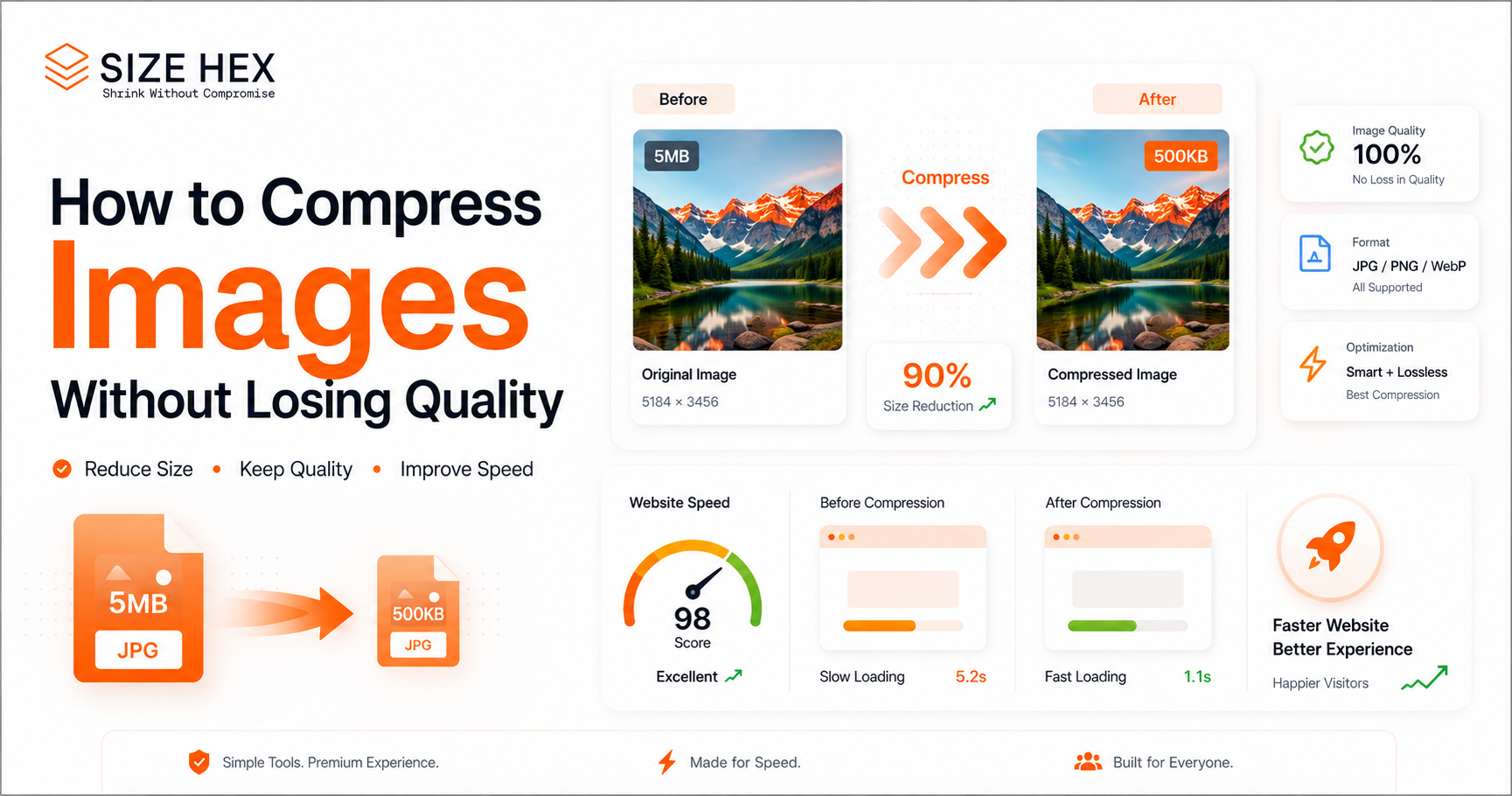
How to Compress Images Without Losing Quality: The Complete Beginner’s Guide
Have you ever tried uploading an image to your website, blog, email, or social media account only to discover that the file size is too large?
It’s a common problem.
Large images can slow down websites, consume storage space, and make sharing files more difficult than it should be. Whether you're a blogger, website developer, designer, student, freelancer, or business owner, optimizing images is an important part of working online.
The good news is that you can compress images without losing quality. Modern image optimization techniques allow you to significantly reduce file size while keeping images sharp and professional.
In this guide, you'll learn how image compression works, why it matters, and the best ways to reduce image size without sacrificing quality.
What Does It Mean to Compress Images Without Losing Quality?
Image compression is the process of reducing the file size of an image while preserving its visual appearance.
The goal is simple:
Reduce image size
Improve loading speed
Save storage space
Improve website performance
Make images easier to share
For example, a 5 MB image can often be reduced to less than 1 MB while looking almost identical to the original.
This is why millions of users search for an image compressor online before uploading images to websites or social media platforms.
Why Is Image Compression Important?
Many people upload images directly from their smartphone or camera. While these images look great, they are often much larger than necessary.
Faster Website Loading
Large images are one of the biggest causes of slow websites.
When images are optimized properly, pages load faster and provide a better experience for visitors.
Better User Experience
People expect websites to load quickly.
Optimized images help pages feel faster and more responsive on both desktop and mobile devices.
Improved SEO Performance
Website speed plays an important role in overall user experience.
Proper website image compression helps improve page performance and makes websites more efficient.
Reduced Storage Usage
Compressed images require less space on your device, web server, or cloud storage account.
Easier File Sharing
Smaller files upload and download faster, making them easier to share through email and messaging apps.
How to Compress Images Without Losing Quality
The process is much easier than most people think.
Step 1: Resize Images Before Compression
One of the most effective ways to reduce image size is to reduce image dimensions.
For example:
Original image: 6000 × 4000 pixels
Website image: 1200 × 800 pixels
If your image is larger than necessary, reduce its dimensions first using the Image Resizer.
This simple step can dramatically decrease file size before compression even begins.
Step 2: Choose the Right Image Format
Different image formats serve different purposes.
JPG
Best for:
Photographs
Blog images
Website banners
Advantages:
Small file sizes
Excellent compatibility
PNG
Best for:
Logos
Graphics
Transparent images
Advantages:
High quality
Transparency support
WebP
Best for:
Modern websites
Performance optimization
Advantages:
Smaller file sizes
Excellent image quality
Faster loading speeds
If you're looking for even better optimization, consider converting your images using the WebP Converter after compression.
Step 3: Compress the Image
Now it's time to reduce file size.
Use the Image Compressor to remove unnecessary image data while maintaining excellent visual quality.
Most images can be reduced by 50% to 90% without noticeable quality loss.
Step 4: Compare Results
Always compare the compressed image with the original.
A properly optimized image should look almost identical while being significantly smaller in size.
Step 5: Download and Use the Optimized Version
Once you're satisfied with the results, download the optimized image and use it on your website, blog, online store, or social media platforms.
Common Reasons Images Become Too Large
Many users wonder why image files become so large in the first place.
Here are some common causes:
High-Resolution Camera Photos
Modern smartphones and cameras create extremely detailed images.
While this improves quality, it also increases file size.
Excessive Image Dimensions
Uploading a 5000-pixel image when only 1200 pixels are needed wastes storage and bandwidth.
Incorrect File Formats
Using PNG for photographs can result in much larger file sizes than necessary.
If needed, switch between image formats using the Image Converter to find the best balance between quality and file size.
Unoptimized Screenshots
Screenshots often contain unnecessary dimensions and metadata that increase file size.
Common Mistakes to Avoid
Uploading Original Images Directly
Always optimize images before publishing them online.
Ignoring Mobile Users
Mobile users often browse on slower internet connections.
Image optimization improves their experience significantly.
Compressing Images Multiple Times
Repeated compression can gradually reduce image quality.
Using the Wrong Format
Not every image should be saved as PNG.
Choosing the right format can dramatically improve results.
Best Practices for Image Optimization
If you want the best possible results, follow these recommendations.
Resize Before Compressing
Always reduce dimensions when possible.
Use Modern Formats
WebP often provides better performance than traditional formats.
Optimize Every Uploaded Image
Make image optimization part of your regular workflow.
Keep Original Backups
Always save the original image before making changes.
Test Website Speed
Regularly monitor website performance after uploading new content.
How Image Compression Helps SEO
Image optimization is one of the easiest ways to improve website performance.
Benefits include:
Faster page loading
Better user experience
Lower bounce rates
Reduced bandwidth usage
Improved overall website performance
For bloggers, developers, and business owners, image optimization should be a standard practice.
Why Use SizeHex?
SizeHex provides fast, simple, and browser-based tools designed to save time and improve productivity.
Instead of installing software, users can optimize images directly from their browser.
Benefits include:
Fast image processing
No software installation
Beginner-friendly interface
Mobile and desktop support
Free online access
Privacy-focused workflow
SizeHex also offers additional tools to streamline your workflow:
Image Compressor : https://sizehex.com/index.html
Image Resizer : https://sizehex.com/image-resizer.html
WebP Converter : https://sizehex.com/webp-converter.html
Image Converter : https://sizehex.com/image-converter.html
Image Cropper : https://sizehex.com/image-crop.html
QR Generator : https://sizehex.com/qr-generator.html
Together, these tools help users optimize images quickly and efficiently.
Frequently Asked Questions
Does image compression reduce quality?
Not necessarily. Modern compression techniques can significantly reduce file size while preserving excellent visual quality.
What is the best image format for websites?
WebP is often considered one of the best formats because it offers smaller file sizes while maintaining high image quality.
How much can image size be reduced?
Depending on the image, file size can often be reduced by 50% to 90%.
Is image compression good for SEO?
Yes. Faster-loading images improve website performance and contribute to a better user experience.
Can I compress images online for free?
Yes. Browser-based image compression tools make it easy to optimize images without installing software.
Conclusion
Image compression is one of the simplest and most effective ways to improve website performance, save storage space, and create a better experience for users.
By choosing the right image format, resizing images properly, and using modern compression techniques, you can dramatically reduce image size without sacrificing quality.
Whether you're managing a blog, running a business website, building an online store, or creating content for social media, image optimization should be part of your regular workflow.
Try SizeHex Today
Ready to reduce image size without losing quality?
Use the Image Compressor to optimize images in seconds. For even better results, combine it with the Image Resizer, WebP Converter, and Image Converter to create a complete image optimization workflow.
Related Tools
Image Compressor : https://sizehex.com/index.html
Image Resizer : https://sizehex.com/image-resizer.html
WebP Converter : https://sizehex.com/webp-converter.html
Image Converter : https://sizehex.com/image-converter.html
Image Cropper : https://sizehex.com/image-crop.html
QR Generator : https://sizehex.com/qr-generator.html