July 22, 2026
How to Convert Images Without Losing Quality | Complete Guide | SizeHex
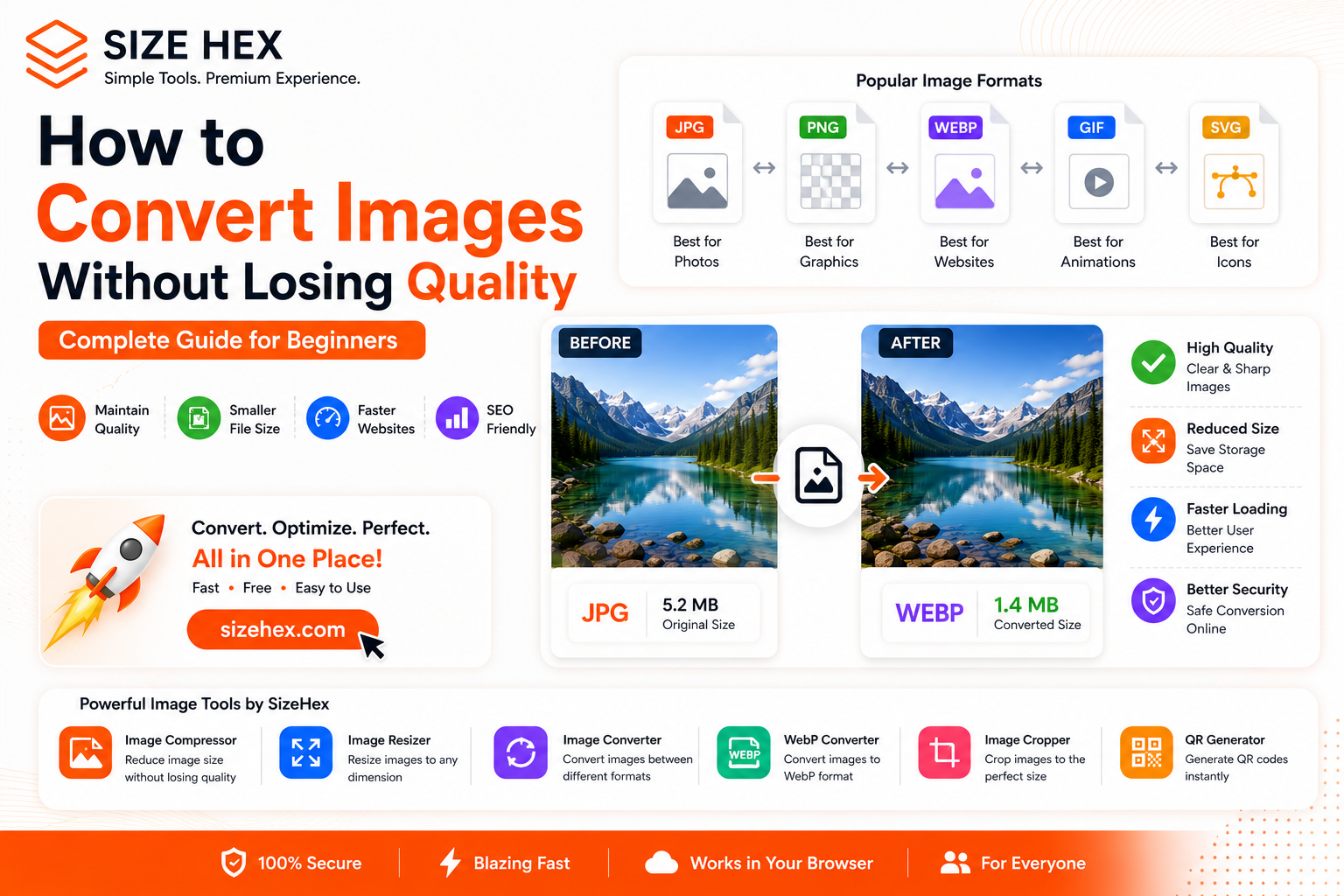
How to Convert Images Without Losing Quality: The Complete Beginner's Guide
Have you ever tried uploading an image to a website, social media platform, or online form and discovered that the format wasn't supported?
Maybe you needed to convert a JPG to PNG, change a PNG into WebP, or reduce file size by switching to another image format.
Image conversion has become an essential part of modern digital workflows. Bloggers, web developers, graphic designers, students, freelancers, and business owners regularly convert images to improve compatibility, optimize website performance, and save storage space.
The good news is that image conversion doesn't have to reduce quality.
In this guide, you'll learn how image conversion works, why it's important, and how to convert images without losing quality.
What Is Image Conversion?
Image conversion is the process of changing one image format into another.
For example:
- JPG → PNG
- PNG → JPG
- JPG → WebP
- PNG → WebP
- WebP → JPG
Each image format has different strengths and weaknesses.
Some formats focus on smaller file sizes, while others prioritize image quality or transparency.
Converting images allows you to choose the format that best suits your needs.
Why Convert Images?
People convert images for many different reasons.
Better Website Performance
Modern image formats can significantly reduce file sizes.
Smaller images improve website speed and create a better experience for visitors.
Save Storage Space
Large image files consume valuable storage space.
Converting images into more efficient formats reduces storage requirements.
Improve Compatibility
Some websites and applications only support specific formats.
Image conversion ensures your files work everywhere.
Faster Uploads
Smaller image files upload and download much faster.
This is especially useful for email attachments and social media.
Better SEO
Optimized images contribute to improved page speed and overall website performance.
Popular Image Formats Explained
Before converting images, it's important to understand the most common formats.
JPG (JPEG)
Best for:
- Photographs
- Blog images
- Website banners
- Social media
Advantages:
- Smaller file sizes
- Excellent compatibility
- Fast loading
Disadvantages:
- No transparency support
- Lossy compression
PNG
Best for:
- Logos
- Graphics
- Icons
- Transparent images
Advantages:
- Lossless quality
- Transparency support
Disadvantages:
- Larger file sizes
WebP
Best for:
- Modern websites
- Blogs
- E-commerce stores
Advantages:
- Smaller file sizes
- Excellent image quality
- Transparency support
Disadvantages:
- Limited support in some older software.
How to Convert Images Without Losing Quality
Follow these simple steps.
Step 1: Choose the Right Format
First, determine how the image will be used.
Choose JPG for photographs.
Choose PNG for graphics and transparency.
Choose WebP for websites and performance optimization.
Step 2: Resize Large Images
If the image dimensions are too large, resize them before conversion.
For example:
- Original: 6000 × 4000 px
- Optimized: 1200 × 800 px
Use the Image Resizer.
https://www.sizehex.com/image-resizer.html
Step 3: Compress Images Before Conversion
Compressing images before converting them often produces better results.
Use the Image Compressor.
This helps reduce file size while maintaining quality.
Step 4: Convert the Image
Now convert the image into the desired format.
Use the Image Converter.
https://www.sizehex.com/image-converter.html
You can quickly switch between formats without installing software.
Step 5: Compare the Results
Always compare the converted image with the original.
A properly converted image should:
- Look sharp
- Maintain quality
- Load faster
- Use less storage
Which Image Format Should You Choose?
The answer depends on your needs.
| Use Case | Recommended Format |
|---|---|
| Photography | JPG |
| Logos | PNG |
| Transparent Images | PNG |
| Websites | WebP |
| Blog Images | JPG / WebP |
| Social Media | JPG |
| UI Graphics | PNG |
Can Image Conversion Reduce Quality?
Sometimes.
Converting from PNG to JPG may reduce quality because JPG uses lossy compression.
However, converting JPG to PNG doesn't automatically improve image quality.
The best approach is:
- Start with high-quality images.
- Avoid repeated conversions.
- Choose the correct format.
- Compress carefully.
Common Mistakes to Avoid
Converting Images Repeatedly
Every conversion can affect image quality.
Using PNG for Photographs
PNG files are often much larger.
Ignoring Compression
Large files slow down websites.
Using the Wrong Format
Always choose the format that matches your use case.
Best Practices
For the best results:
- Resize images before conversion.
- Compress images first.
- Use WebP for websites.
- Keep original backups.
- Optimize every uploaded image.
- Test image quality after conversion.
Why Use SizeHex?
SizeHex provides a complete set of image optimization tools directly in your browser.
With SizeHex, you can:
- Compress images
- Resize images
- Convert image formats
- Convert images to WebP
- Crop images
- Generate QR codes
Everything works online without software installation.
Frequently Asked Questions
Does converting images reduce quality?
Not always. The result depends on the formats you choose.
Which image format is best for websites?
WebP is often the best option because it offers smaller file sizes with excellent quality.
Can I convert images online for free?
Yes. Browser-based tools like SizeHex make image conversion simple.
Should I resize images before converting them?
Yes. Resizing helps reduce file size and improve performance.
Can I convert JPG to PNG?
Absolutely. Image converters make it easy to switch between formats.
Conclusion
Image conversion is one of the easiest ways to optimize images for websites, blogs, social media, and professional projects.
By choosing the right format, resizing images correctly, and compressing them before conversion, you can maintain quality while reducing file size.
Whether you're a developer, designer, blogger, student, or business owner, image optimization should become part of your workflow.
Try SizeHex Today
Ready to optimize your images?
Use SizeHex to resize, compress, convert, and optimize your images directly in your browser.
Whether you're building a website, creating content, or sharing images online, SizeHex helps you work faster and smarter.
Related Tools
Image Compressor
Image Resizer
https://www.sizehex.com/image-resizer.html
WebP Converter
https://www.sizehex.com/webp-converter.html
Image Converter
https://www.sizehex.com/image-converter.html
Image Cropper
https://www.sizehex.com/image-crop.html