July 23, 2026
How to Crop Images Online Without Losing Quality | Complete Guide | SizeHex
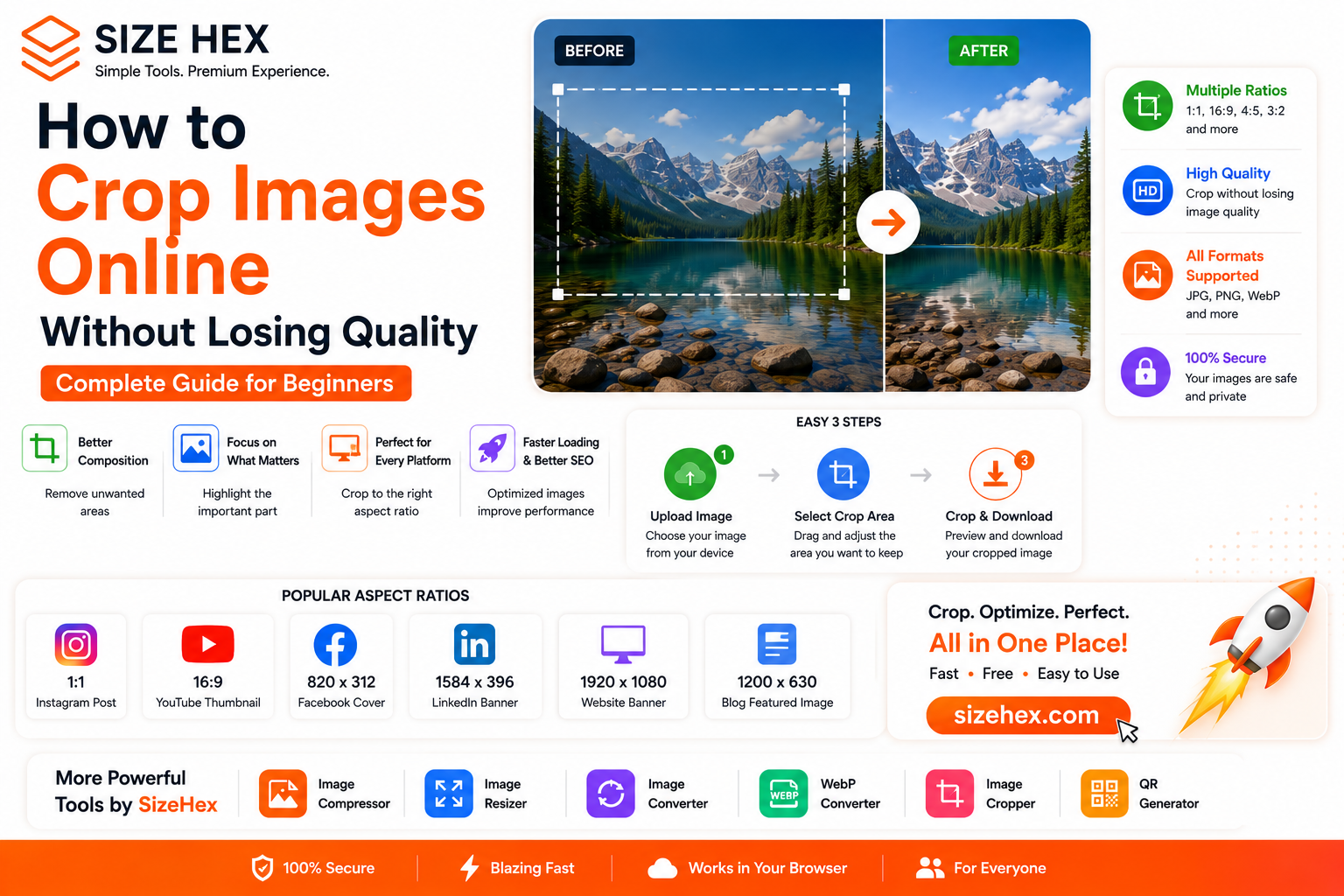
How to Crop Images Online Without Losing Quality: The Complete Beginner's Guide
Have you ever taken the perfect photo but noticed unwanted objects around the edges?
Maybe the image is too wide for your website banner, too tall for Instagram, or contains distracting elements that take attention away from your subject.
Instead of resizing the entire image, cropping allows you to remove unnecessary areas while keeping the most important part of the picture.
Whether you're a blogger, web developer, designer, student, freelancer, or business owner, knowing how to crop images properly helps improve both appearance and performance.
In this guide, you'll learn what image cropping is, why it matters, and how to crop images online without losing quality.
What Is Image Cropping?
Image cropping is the process of removing unwanted portions of an image while keeping the important area.
Unlike resizing, cropping changes the visible area of the image instead of simply reducing its dimensions.
For example:
- Remove unwanted background objects.
- Focus on a person's face.
- Create a perfect website banner.
- Fit an image into social media dimensions.
Cropping helps create cleaner and more professional-looking images.
Why Should You Crop Images?
Image cropping isn't just about aesthetics—it also improves usability and presentation.
Improve Composition
Cropping removes distractions and helps viewers focus on the main subject.
Optimize Images for Websites
Different sections of a website require different image sizes.
Cropping helps images fit perfectly into banners, cards, and galleries.
Social Media Optimization
Every platform has recommended image dimensions.
Cropping helps your images display correctly without awkward cuts.
Better User Experience
Well-cropped images make websites look cleaner and more professional.
Common Reasons to Crop Images
People crop images for many reasons.
- Remove unnecessary backgrounds.
- Focus on important subjects.
- Create profile pictures.
- Prepare product photos.
- Design website banners.
- Optimize blog featured images.
- Create social media posts.
- Improve visual composition.
How to Crop Images Online
Follow these simple steps.
Step 1: Upload Your Image
Choose the image you want to edit.
Use a high-quality original image for the best results.
Step 2: Select the Crop Area
Drag the crop box around the important part of the image.
Remove unnecessary areas while keeping the main subject.
Step 3: Maintain the Correct Aspect Ratio
Different platforms require different aspect ratios.
Examples:
- Instagram Square: 1:1
- YouTube Thumbnail: 16:9
- Facebook Cover: 820 × 312 px
- Website Banner: 1920 × 1080 px
Choosing the correct ratio helps images display perfectly.
Step 4: Crop the Image
Apply the crop and preview the result.
The image should remain sharp and focused.
Step 5: Optimize Before Downloading
For the best performance:
Resize Image
↓
Crop Image
↓
Compress Image
↓
Convert to WebP
This workflow produces smaller, faster-loading images without sacrificing quality.
Image Cropping vs Image Resizing
Many beginners confuse cropping with resizing.
Cropping
- Removes unwanted parts.
- Changes the visible area.
- Improves composition.
Resizing
- Changes image dimensions.
- Keeps the entire image.
- Optimizes file size.
Both are useful but serve different purposes.
Best Image Sizes for Popular Platforms
| Platform | Recommended Size |
|---|---|
| Instagram Post | 1080 × 1080 px |
| Facebook Cover | 820 × 312 px |
| YouTube Thumbnail | 1280 × 720 px |
| LinkedIn Banner | 1584 × 396 px |
| Website Banner | 1920 × 1080 px |
| Blog Featured Image | 1200 × 630 px |
Common Mistakes to Avoid
Cropping Too Much
Removing too much of the image can reduce its impact.
Ignoring Aspect Ratios
Wrong dimensions may cause images to appear stretched or cut off.
Using Low-Quality Images
Always start with the highest-quality version available.
Forgetting Optimization
Crop first, then compress the image before uploading.
Best Practices
To achieve professional results:
- Keep the subject centered.
- Remove distractions.
- Use recommended aspect ratios.
- Compress images after cropping.
- Convert to WebP for websites.
- Keep original image backups.
Why Use SizeHex?
SizeHex provides fast, browser-based image optimization tools.
With SizeHex, you can:
- Crop images
- Compress images
- Resize images
- Convert image formats
- Convert images to WebP
- Generate QR codes
Everything works directly in your browser without installing software.
Frequently Asked Questions
Does cropping reduce image quality?
No. Cropping removes part of the image but doesn't automatically reduce quality.
Is cropping the same as resizing?
No. Cropping changes the visible area, while resizing changes the image dimensions.
Can I crop images online for free?
Yes. Browser-based tools like SizeHex make image cropping quick and easy.
Should I compress images after cropping?
Yes. Compressing cropped images further reduces file size.
Which format should I use after cropping?
WebP is usually the best choice for websites because it offers smaller file sizes with excellent quality.
Conclusion
Cropping images is one of the simplest ways to improve composition, remove distractions, and create professional-looking visuals.
Combined with resizing, compression, and WebP conversion, cropping helps produce fast-loading, high-quality images for websites, blogs, and social media.
Whether you're a creator, developer, designer, student, or business owner, learning how to crop images correctly will improve your entire image workflow.
Try SizeHex Today
Ready to crop and optimize your images?
Use SizeHex to crop, resize, compress, convert, and optimize your images directly in your browser—fast, free, and easy to use.
Related Tools
Image Compressor
Image Resizer
https://www.sizehex.com/image-resizer.html
WebP Converter
https://www.sizehex.com/webp-converter.html
Image Converter
https://www.sizehex.com/image-converter.html
Image Cropper
https://www.sizehex.com/image-crop.html