July 21, 2026
How to Resize Images Without Losing Quality | Complete Beginner's Guide | SizeHex
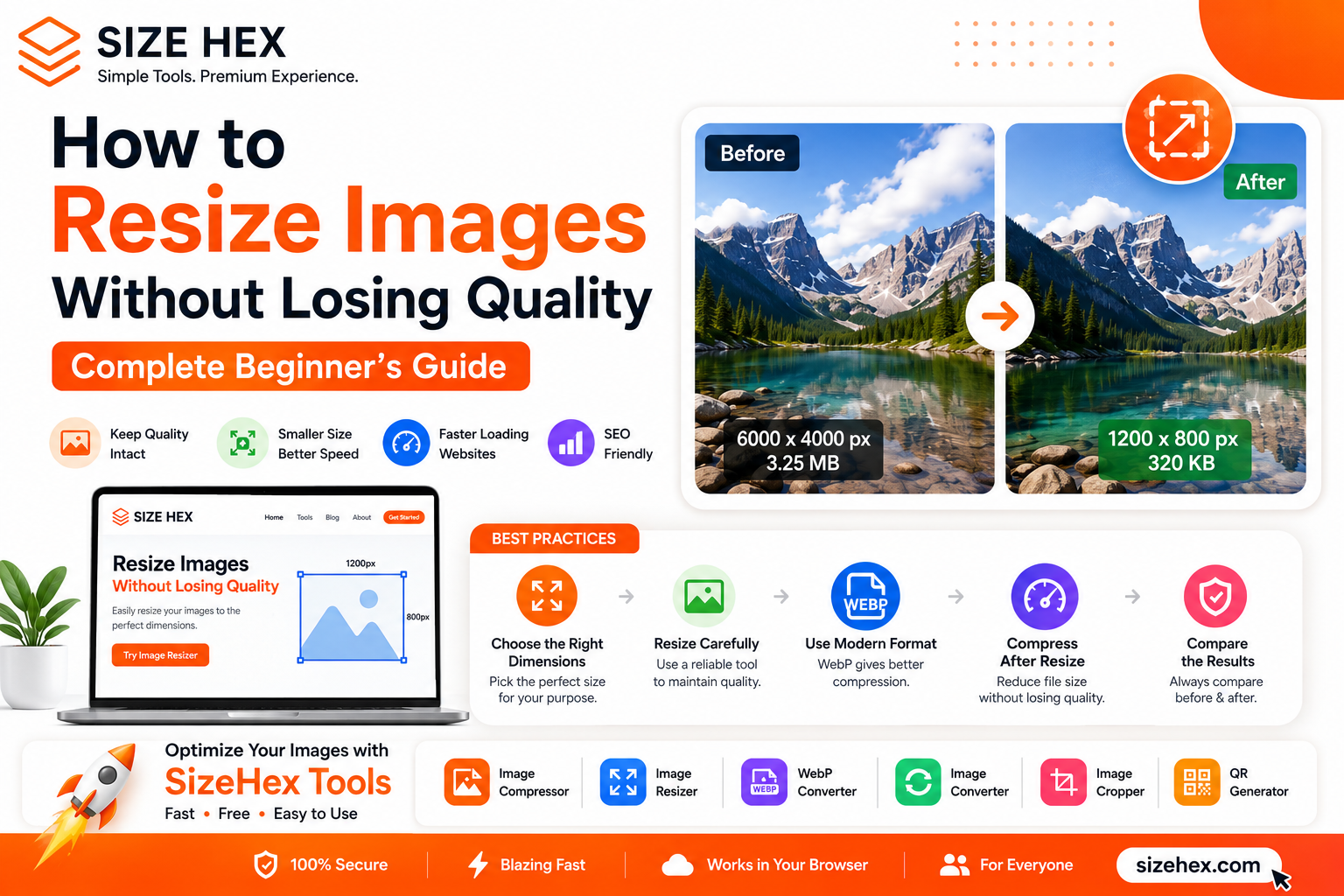
How to Resize Images Without Losing Quality: The Complete Beginner's Guide
Have you ever uploaded an image to your website or social media account only to realize that it's too large?
Large images can slow down websites, consume storage space, and create a poor user experience. Whether you're a blogger, web developer, designer, freelancer, student, or business owner, resizing images correctly is an essential skill.
The good news is that resizing images doesn't have to reduce quality.
With the right techniques and tools, you can reduce image dimensions while keeping your photos sharp, clear, and professional.
In this guide, you'll learn how image resizing works, why it's important, and the best ways to resize images without losing quality.
What Does Image Resizing Mean?
Image resizing is the process of changing an image's dimensions.
For example:
- Original image: 6000 × 4000 pixels
- Resized image: 1200 × 800 pixels
Resizing changes the number of pixels in the image.
The goal is to reduce unnecessary dimensions while maintaining excellent visual quality.
People resize images for many reasons:
- Faster website loading
- Better SEO
- Reduced storage usage
- Faster uploads
- Social media optimization
- Email attachments
Why Should You Resize Images?
Many people upload images directly from smartphones or cameras.
Modern devices produce extremely high-resolution images, but large dimensions are often unnecessary.
Faster Website Performance
Large images increase page load times.
Resizing images helps websites load faster and improves the browsing experience.
Better SEO
Optimized images contribute to better website performance.
Smaller image sizes help improve Core Web Vitals and overall page speed.
Save Storage Space
Resized images require less storage on your computer, cloud storage, or web server.
Faster Uploads
Smaller images upload and download much faster.
This is especially useful when sharing files via email or messaging apps.
Does Resizing Reduce Image Quality?
Not necessarily.
Many people believe that reducing image dimensions automatically reduces quality, but that's not always true.
If done correctly, resizing can significantly reduce file size while preserving visual quality.
The key is:
- Use the correct dimensions.
- Choose the right image format.
- Avoid resizing repeatedly.
- Compress images carefully.
How to Resize Images Without Losing Quality
Follow these simple steps.
Step 1: Choose the Correct Dimensions
Before resizing, decide where the image will be used.
Examples:
| Use Case | Recommended Size |
|---|---|
| Blog images | 1200 × 800 px |
| Instagram post | 1080 × 1080 px |
| Facebook cover | 820 × 312 px |
| Website banner | 1920 × 1080 px |
| Thumbnail | 1280 × 720 px |
Choosing the correct dimensions prevents unnecessary quality loss.
Step 2: Use an Image Resizer
Instead of stretching or shrinking images manually, use a dedicated image resizer.
The Image Resizer allows you to change dimensions quickly without installing software.
https://www.sizehex.com/image-resizer.html
Step 3: Choose the Right Image Format
Different formats serve different purposes.
JPG
Best for:
- Photographs
- Blog images
- Social media
Advantages:
- Smaller file sizes
- Excellent compatibility
PNG
Best for:
- Logos
- Graphics
- Transparent images
Advantages:
- High quality
- Transparency support
WebP
Best for:
- Modern websites
- Faster loading
- Better optimization
Advantages:
- Smaller files
- Excellent quality
Step 4: Compress the Image
After resizing, compress the image to reduce file size further.
Use the Image Compressor.
For websites, the best workflow is:
Resize Image
↓
Compress Image
↓
Convert to WebP
Step 5: Compare the Results
Always compare the resized image with the original.
A properly resized image should:
- Look sharp
- Load faster
- Use less storage
- Maintain quality
Common Reasons Images Become Too Large
High-Resolution Camera Photos
Modern cameras produce extremely detailed images.
Oversized Dimensions
Uploading a 5000-pixel image when only 1200 pixels are needed wastes storage.
Wrong Image Format
Using PNG for photographs often creates unnecessarily large files.
Missing Compression
Images that aren't compressed take longer to load.
Common Mistakes to Avoid
Uploading Original Images
Always resize images before publishing.
Resizing Multiple Times
Repeated resizing can reduce quality.
Ignoring Mobile Users
Optimized images improve the mobile experience.
Using the Wrong Format
Choose the correct image format for your use case.
Best Practices
To achieve the best results:
- Resize images before uploading.
- Compress large images.
- Convert images to WebP.
- Keep original backups.
- Optimize every image.
- Test website speed regularly.
Why Use SizeHex?
SizeHex provides simple browser-based tools for image optimization.
With SizeHex, you can:
- Resize images
- Compress images
- Convert image formats
- Convert to WebP
- Crop images
- Generate QR codes
Everything works directly in your browser without software installation.
Frequently Asked Questions
Does resizing reduce image quality?
Not necessarily. Proper resizing preserves visual quality while reducing dimensions.
What is the best image size for websites?
For most websites, 1200 × 800 pixels works well.
Should I resize images before uploading?
Yes. Resizing improves performance and reduces storage usage.
Can I resize images online for free?
Yes. Browser-based tools like SizeHex make the process simple.
Which format is best after resizing?
WebP is often the best option for modern websites.
Conclusion
Image resizing is one of the easiest ways to improve website performance, save storage space, and create a better experience for users.
By choosing the right dimensions, compressing images properly, and using modern formats like WebP, you can resize images without sacrificing quality.
Whether you're building a website, managing a blog, or posting on social media, image optimization should become part of your workflow.
Try SizeHex Today
Ready to resize your images?
Use SizeHex to resize, compress, convert, and optimize your images directly in your browser.
Whether you're a blogger, developer, designer, student, freelancer, or business owner, SizeHex helps you work faster and smarter.
Related Tools
Image Compressor
Image Resizer
https://www.sizehex.com/image-resizer.html
WebP Converter
https://www.sizehex.com/webp-converter.html
Image Converter
https://www.sizehex.com/image-converter.html
Image Cropper
https://www.sizehex.com/image-crop.html