July 23, 2026
PNG vs JPG: Which Image Format Is Better? Complete Guide | SizeHex
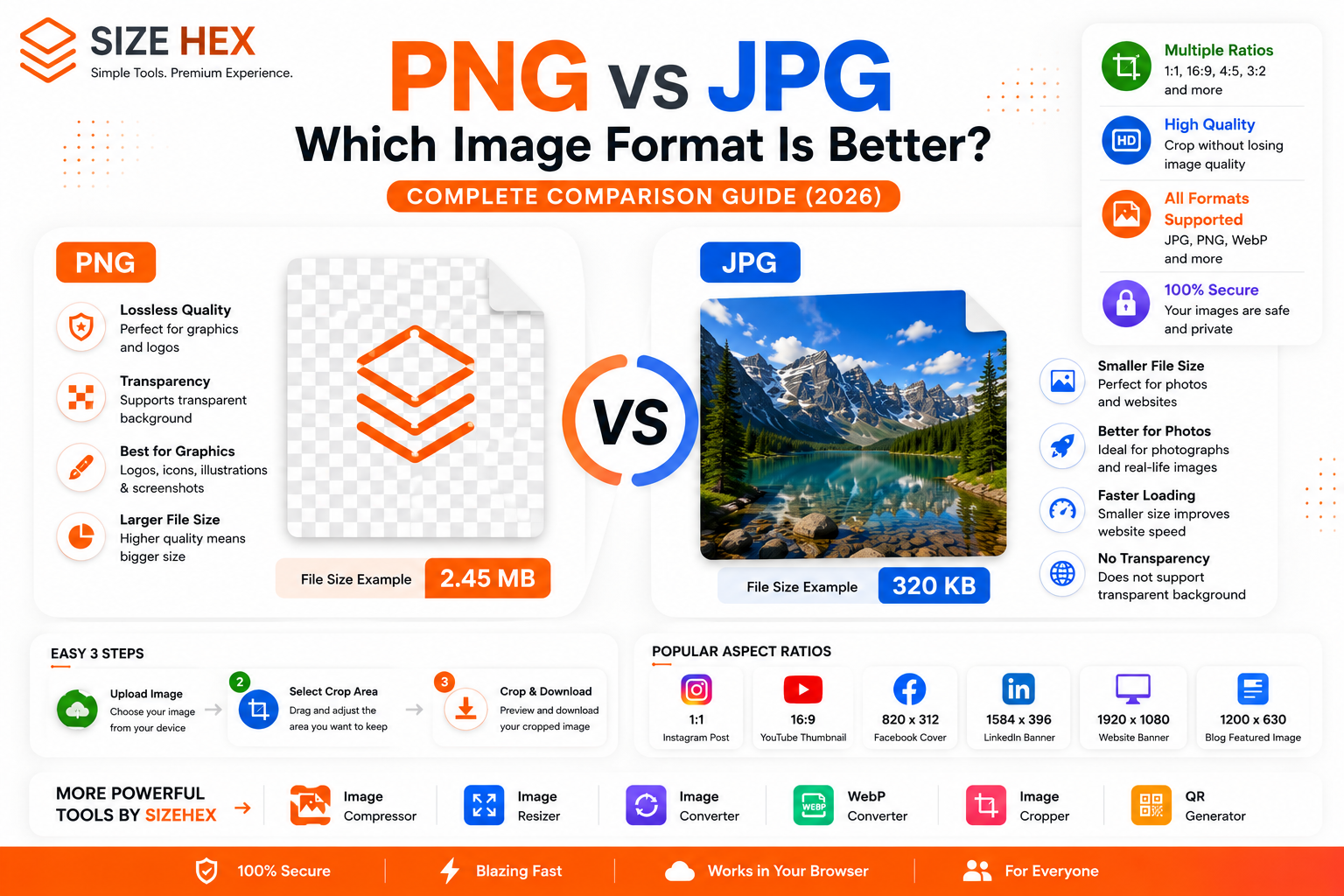
PNG vs JPG: Which Image Format Is Better? (Complete Guide)
Choosing the right image format is one of the most important decisions when creating websites, blogs, online stores, presentations, or social media content. Two of the most commonly used image formats are PNG and JPG, but many people are unsure which one they should use.
At first glance, PNG and JPG may look almost identical. However, these formats are built for different purposes. They use different compression methods, produce different file sizes, support different features, and can even affect your website's loading speed and user experience.
If you're a blogger, web developer, designer, photographer, student, freelancer, or business owner, understanding the difference between PNG and JPG will help you create better-performing websites and higher-quality visual content.
In this complete guide, we'll compare PNG vs JPG in detail, explain the advantages and disadvantages of each format, and help you choose the best option for every situation.
What Is PNG?
PNG stands for Portable Network Graphics.
It was introduced in 1996 as a modern replacement for the GIF image format. Unlike many other image formats, PNG uses lossless compression, meaning it preserves image quality without permanently removing image data.
Because PNG maintains high quality and supports transparent backgrounds, it has become the preferred choice for logos, icons, UI elements, illustrations, screenshots, and professional graphics.
Advantages of PNG
- Lossless image quality
- Supports transparent backgrounds
- Excellent for logos and icons
- Sharp text and graphics
- Perfect for screenshots
- Ideal for editing images multiple times
Disadvantages of PNG
- Larger file sizes
- Slower website loading if not optimized
- Not ideal for large photo galleries
- Takes more storage space
What Is JPG?
JPG (or JPEG) stands for Joint Photographic Experts Group, the organization that created the format.
JPG uses lossy compression, which means it removes some image information to create much smaller file sizes.
Although a small amount of quality is sacrificed, modern JPG compression is highly efficient. Most users cannot notice the difference unless the image is compressed too aggressively.
Because of its small file size, JPG has become the most widely used image format for photography, blogging, websites, e-commerce, and social media.
Advantages of JPG
- Small file size
- Faster loading websites
- Perfect for photography
- Better storage efficiency
- Excellent browser compatibility
- Easy sharing
Disadvantages of JPG
- No transparent background
- Quality decreases after repeated editing and saving
- Compression artifacts may appear
- Less suitable for logos and illustrations
PNG vs JPG: Quick Comparison
| Feature | PNG | JPG |
|---|---|---|
| Compression | Lossless | Lossy |
| Image Quality | Excellent | Very Good |
| File Size | Large | Small |
| Transparency | ✅ Supported | ❌ Not Supported |
| Photography | ⭐⭐⭐ | ⭐⭐⭐⭐⭐ |
| Logos | ⭐⭐⭐⭐⭐ | ⭐⭐ |
| Website Speed | Good | Excellent |
| Editing | Excellent | Moderate |
| SEO Performance | Good | Excellent (when optimized) |
Image Quality Comparison
Image quality is one of the biggest differences between PNG and JPG.
PNG preserves almost all the original image information. Even after editing and saving multiple times, the image remains sharp and detailed. This makes PNG the preferred choice for graphics, logos, diagrams, and screenshots where every pixel matters.
JPG, on the other hand, compresses image data to reduce file size. While modern JPG compression usually looks excellent, repeated editing and re-saving can gradually reduce image quality.
For most photographs, the quality difference is barely noticeable. However, for graphics containing text, fine lines, or transparency, PNG generally delivers better results.
Winner: PNG
File Size Comparison
When it comes to storage and website performance, JPG has a major advantage.
Because JPG uses lossy compression, its file size is often much smaller than an equivalent PNG image.
For example:
Original Photo
- PNG: 5.2 MB
- JPG: 950 KB
In many cases, a JPG image can be 70–90% smaller than a PNG version while still looking almost identical to the human eye.
Smaller images mean:
- Faster websites
- Better Core Web Vitals
- Lower bandwidth usage
- Faster uploads
- Improved user experience
If your goal is maximum website speed, JPG is usually the better option for photographs.
Winner: JPG
Transparency Support
One feature that makes PNG unique is its ability to support transparent backgrounds.
Transparent images are extremely useful for:
- Company logos
- Brand icons
- Website buttons
- Product cutouts
- Stickers
- UI components
JPG does not support transparency. Any transparent area will automatically become white or another solid color.
This is why professional designers almost always export logos as PNG files.
Winner: PNG
Website Performance
Website speed has become an important ranking factor.
Large images can slow down page loading, increase bounce rates, and negatively affect user experience.
Since JPG images are significantly smaller than PNG images, they generally help websites load faster.
For:
- Blog featured images
- Landing pages
- E-commerce products
- Portfolio websites
- Photography websites
JPG is usually the better choice.
However, if transparency is required, PNG remains the correct option.
PNG vs JPG for SEO
Many people believe Google prefers PNG or JPG for rankings. That's not entirely true.
Google doesn't rank images simply because they are PNG or JPG. Instead, it considers factors such as page speed, user experience, image optimization, and accessibility.
Since JPG files are usually much smaller, they often help websites load faster. Faster loading pages improve user experience and can contribute to better Core Web Vitals, which are important for SEO.
No matter which format you choose, always remember to:
- Compress your images before uploading.
- Use descriptive file names.
- Add meaningful alt text.
- Resize images to the correct dimensions.
- Avoid uploading unnecessarily large files.
If transparency isn't required, JPG is generally the better option for most website images because of its smaller file size.
Best Format for Photography
Professional photographers almost always use JPG when sharing or publishing finished photographs online.
Why?
Because photography contains millions of colors and gradients that JPG compresses very efficiently without creating obvious quality loss.
Benefits of JPG for photography:
- Smaller storage requirements
- Faster uploads
- Faster downloads
- Better compatibility
- Excellent print quality
- Ideal for websites
PNG is rarely used for photographs unless further editing or transparency is required.
Winner: JPG
Best Format for Logos
Logos require:
- Sharp edges
- Crystal-clear text
- Transparent backgrounds
- High-quality graphics
PNG handles all these requirements perfectly.
Using JPG for logos often results in:
- White background
- Blurry edges
- Compression artifacts
- Poor professional appearance
If you're designing a company logo, brand icon, or watermark, PNG is almost always the best choice.
Winner: PNG
Best Format for Screenshots
Screenshots usually contain:
- Text
- Buttons
- Icons
- User interfaces
- Fine details
PNG preserves these elements much better than JPG.
JPG compression can make text appear blurry, especially after multiple saves.
For software tutorials, documentation, presentations, and educational content, PNG is the recommended format.
Winner: PNG
Best Format for Blogging
Blog featured images should balance quality and performance.
For most blogs:
- JPG provides excellent quality.
- Smaller files improve loading speed.
- Better Core Web Vitals.
- Better user experience.
If your featured image contains transparent elements or graphics, PNG may be a better option.
Many bloggers also convert optimized JPG images into WebP for even faster performance.
Best Format for E-commerce
Online stores require product images that load quickly while maintaining visual quality.
Recommended approach:
- Product photographs → JPG
- Transparent product cutouts → PNG
- Website optimization → Convert to WebP
This combination provides the best balance between speed and image quality.
Best Format for Social Media
Social media platforms automatically compress uploaded images.
For photographs:
- JPG is usually the best choice.
For graphics, stickers, and logos:
- PNG works better.
Most platforms will still apply their own compression after upload.
PNG vs JPG: Pros and Cons
PNG Advantages
- Excellent image quality
- Supports transparency
- Perfect for logos
- Great for screenshots
- Lossless compression
- Multiple editing without quality loss
PNG Disadvantages
- Larger file sizes
- Slower loading if not optimized
- Uses more storage
- Longer upload times
JPG Advantages
- Much smaller file sizes
- Faster websites
- Great for photography
- Excellent compatibility
- Saves storage space
- Faster downloads
JPG Disadvantages
- No transparency
- Lossy compression
- Image quality decreases after repeated editing
- Not suitable for logos
Common Mistakes
Avoid these common mistakes when choosing an image format:
❌ Uploading 5–10 MB PNG photos directly to a website.
❌ Using JPG for transparent logos.
❌ Ignoring image compression before uploading.
❌ Uploading original camera images without resizing.
❌ Forgetting image alt text for SEO.
❌ Choosing PNG simply because it has "better quality," even when JPG would perform better.
Best Practices
For the best results:
- Use JPG for photographs.
- Use PNG for graphics and logos.
- Compress every image before uploading.
- Resize images according to their display size.
- Convert suitable images to WebP.
- Write descriptive filenames.
- Add SEO-friendly alt text.
- Use responsive images where possible.
Try SizeHex Today
Whether you need to compress, resize, crop, or convert images, SizeHex provides fast, secure, and easy-to-use online tools that work directly in your browser.
Start optimizing your images today and improve your website performance with professional image optimization tools.
Related Tools
Image Compressor
Reduce image file size without noticeable quality loss. Perfect for websites, blogs, e-commerce stores, and social media.
Image Resizer
https://www.sizehex.com/image-resizer.html
Resize images for websites, Instagram, Facebook, YouTube, LinkedIn, and more.
Image Converter
https://www.sizehex.com/image-converter.html
Convert images between JPG, PNG, WebP, BMP, GIF, TIFF, and other popular image formats.
WebP Converter
https://www.sizehex.com/webp-converter.html
Convert images to and from WebP for faster website loading and better performance.
Image Cropper
https://www.sizehex.com/image-crop.html
Crop images online using custom dimensions or preset aspect ratios without installing any software.
QR Code Generator
https://www.sizehex.com/qr-generator.html
Generate QR codes for URLs, Wi-Fi, contact details, phone numbers, emails, and more.
Featured Image Prompt
Design an ultra-modern premium blog featured image (1200×630 px) for SizeHex titled "PNG vs JPG: Which Image Format Is Better?". Use a clean white background with vibrant orange (#ff6b00) accents, subtle glassmorphism cards, and a minimal SaaS design inspired by Canva, TinyPNG, and Notion. Create a split comparison layout with a PNG file on the left (transparent checkerboard background) and a JPG file on the right (high-quality landscape photo). Add comparison icons for Quality, File Size, Transparency, Website Speed, and SEO, with a bold "VS" badge in the center. Place the official SizeHex logo in the top-left corner. Use bold Inter typography with the headline "PNG vs JPG" and subtitle "Complete Comparison Guide (2026)". Include floating UI cards, smooth gradients, soft shadows, and generous white space for a premium, trustworthy appearance.